Follow the steps below to set up your Smartcard. A video demonstration is available above. If you are using graphic tutorials, we suggest reading from a second device.
1. Open Your Card
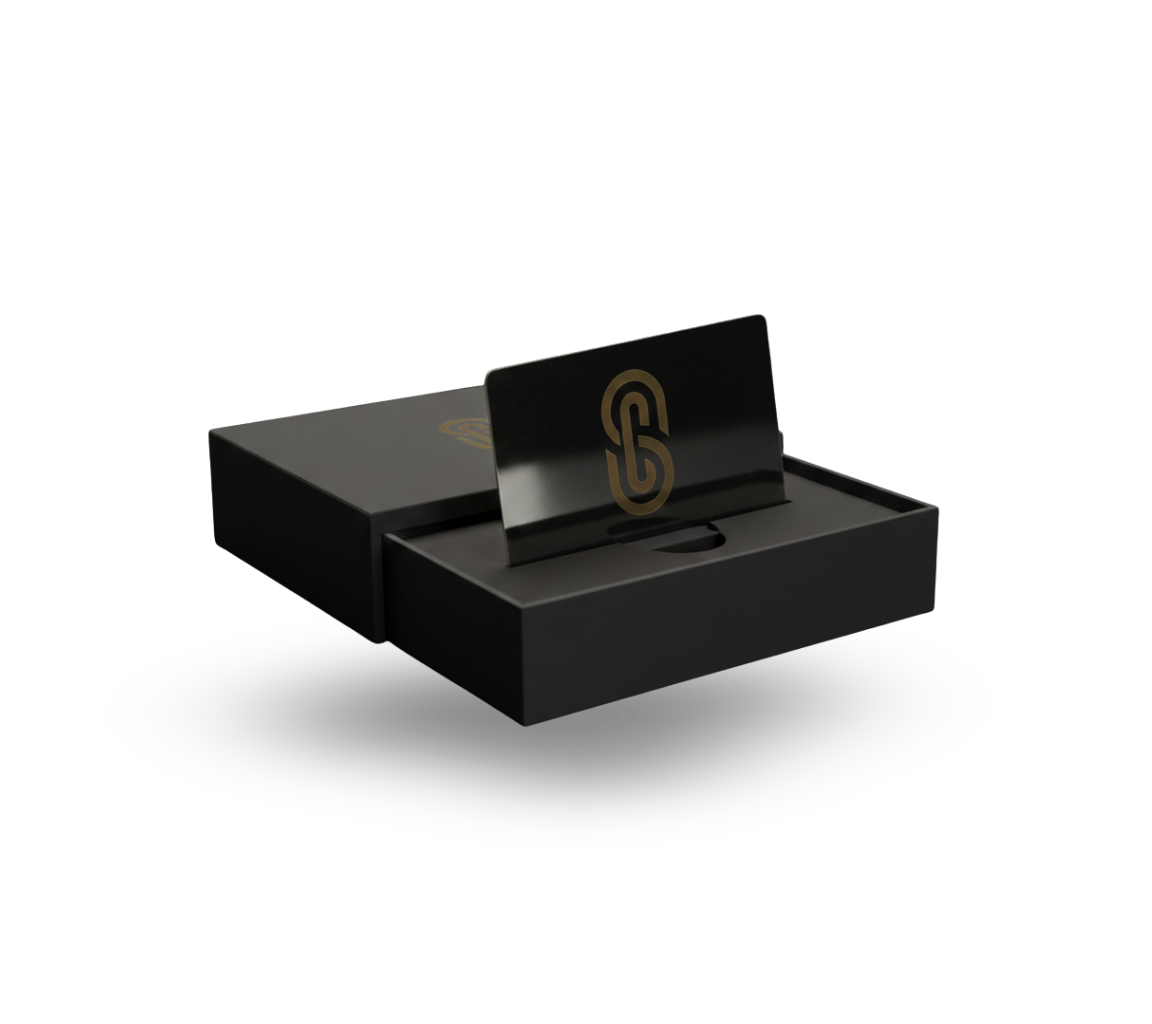
Take your card out of its box - you can't start using it if its in there!
2. Locate & Tap NFC
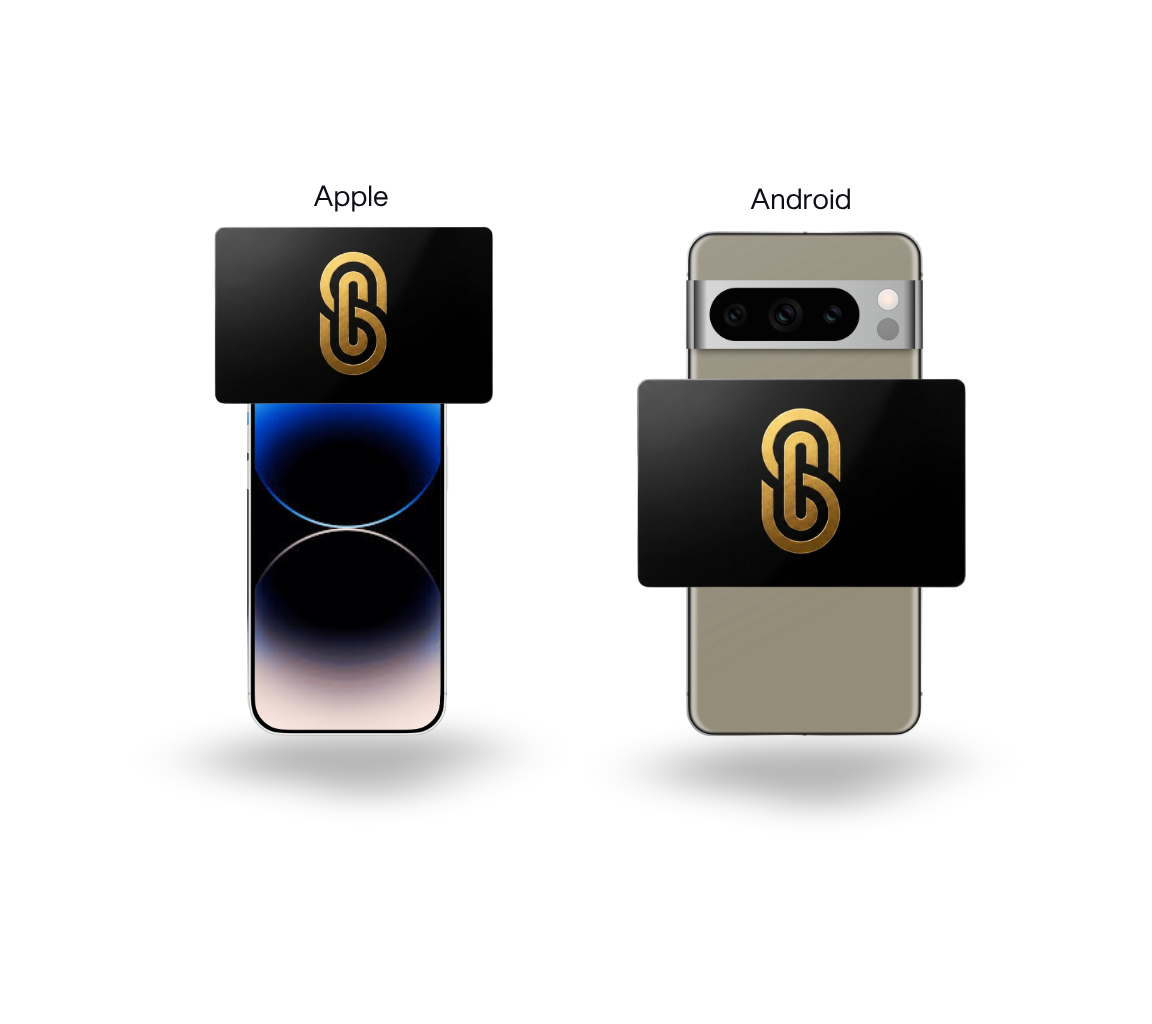
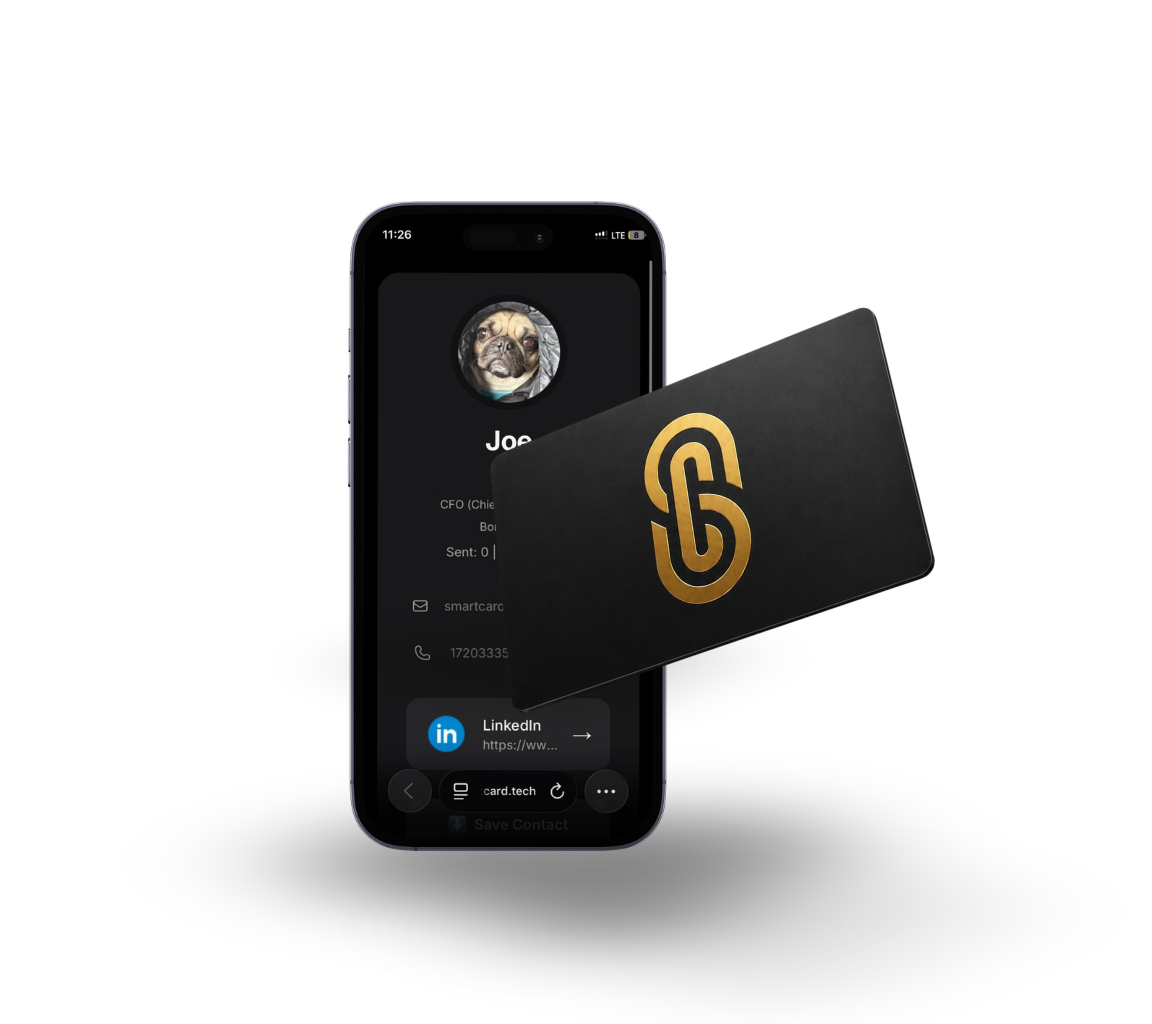
Depending on if you have an Apple or Android device, use the refrence photo to locate and "tap" your NFC
Ensure your NFC is on (Especially Android Users)
Do NOT touch card to phone - hold it 1-2 inches away
If pairing has not happened, try slowly waving the card across the NFC area
3. Claim Your Card!
Once the scan is sucsessful, a notification will pop up with a link. Follow this to claim your card!
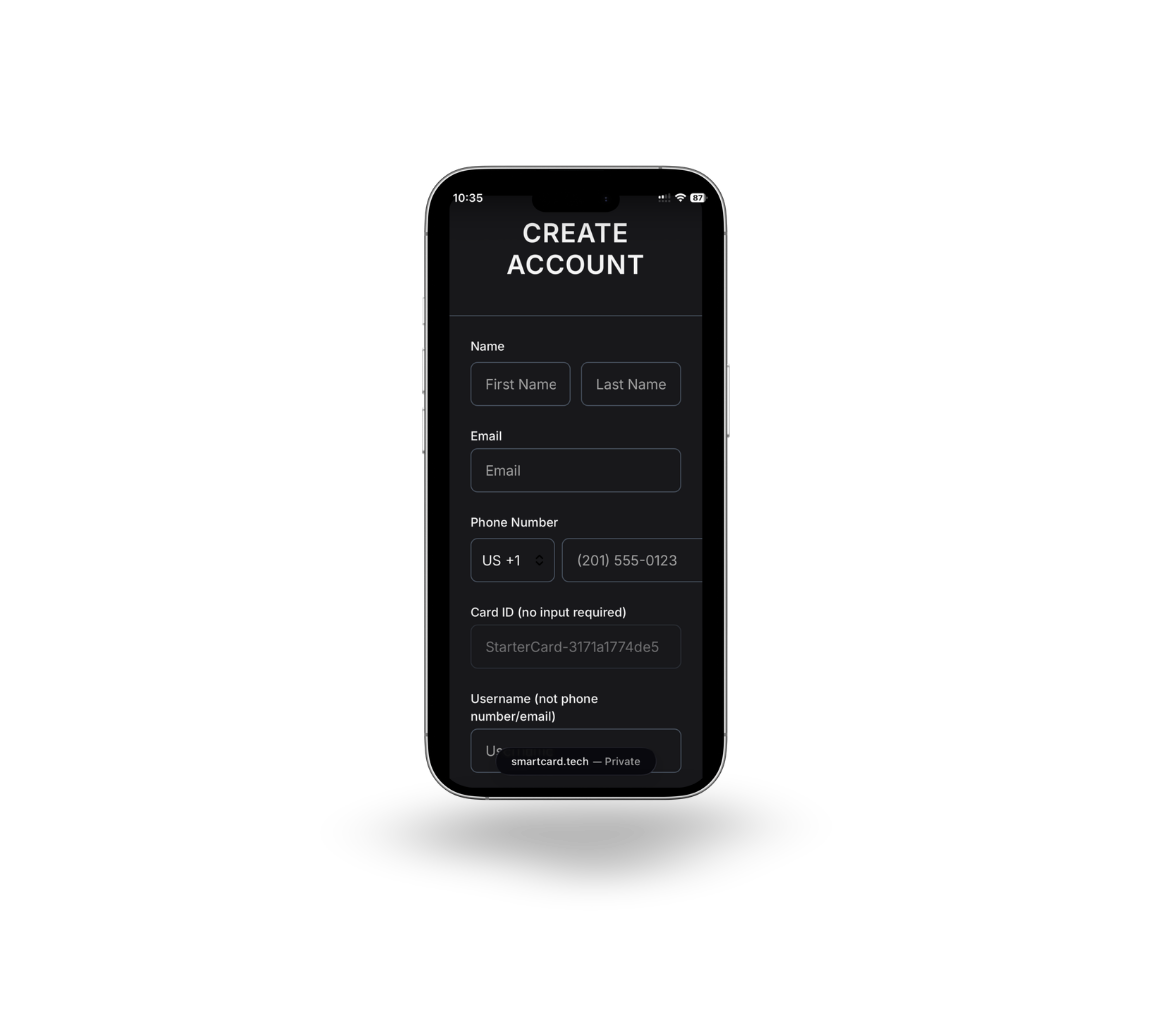
4. Enter Personal Details
Once the card is claimed, you will be prompted to submit your personal contact information. This is what people will download when saving your contact, so make sure its correct!
Card ID - this is internal use only, no need to touch it.
Username - This will be associated with your account across all Smartcard products, similar to a social media handle. Choose whatever you like!
Password - You'll need this to sign back into your account, so be sure to remember it.
5. Verify Your Email
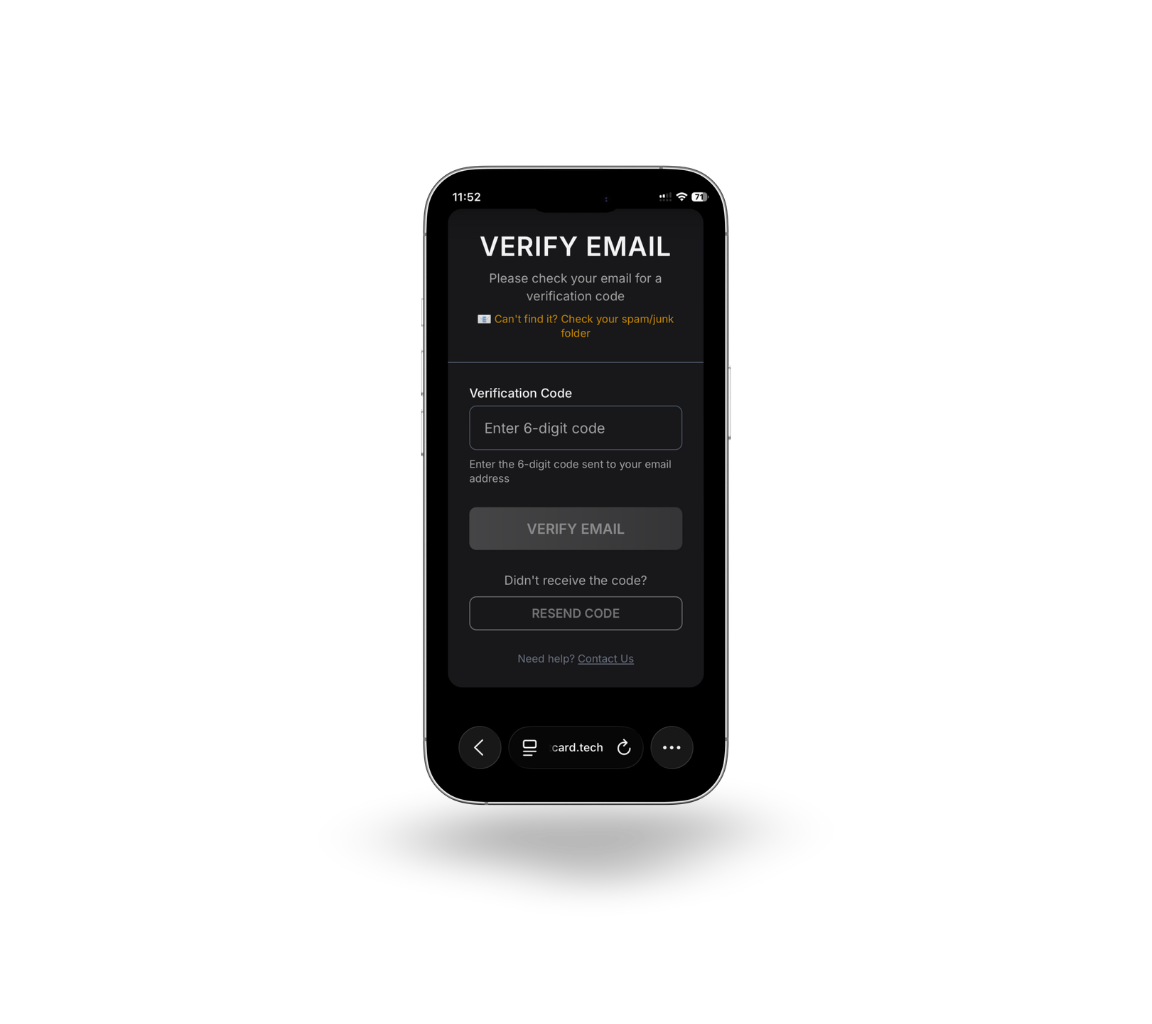
Following entering your personal detail, you will see a screen prompting you to verify your email. Paste the code and verify your email before continuing.
Still waiting? If it's been more than a minute, check your spam folder - it occasionally ends up there.
6. Attaching your socials
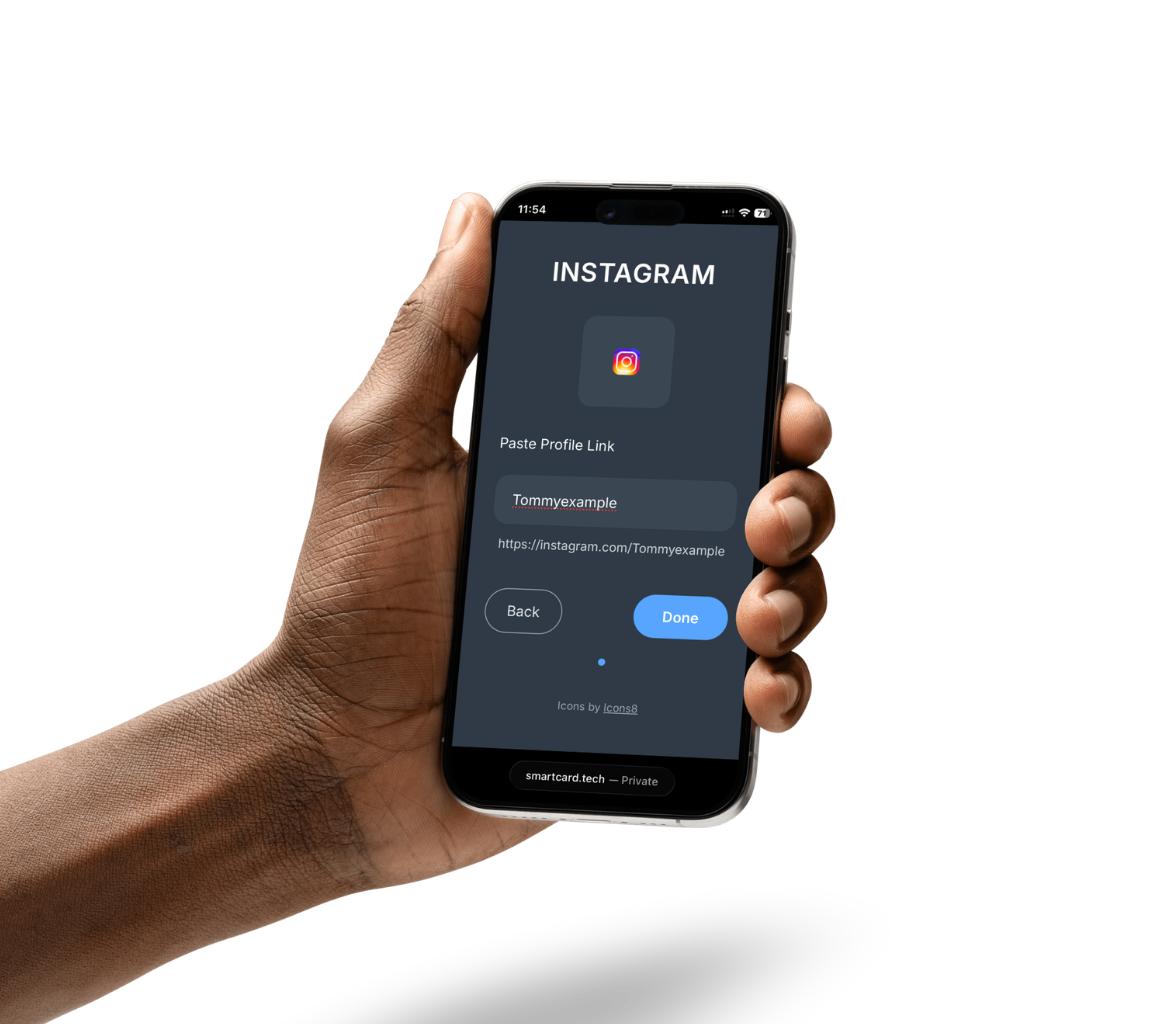
Once you've selected your social media platforms, paste your landing link into the text box to enable sharing. See the steps below for more details.
Selecting Platforms - When prompted, make sure all the social platforms you want to use are highlighted, and the rest remain unselected.
Getting your links - Visit your preferred profile page, copy the URL from your browser's address bar, and paste it into the text box.
Password - You'll need this to sign back into your account, so be sure to remember it.
7. Personalize Your Page
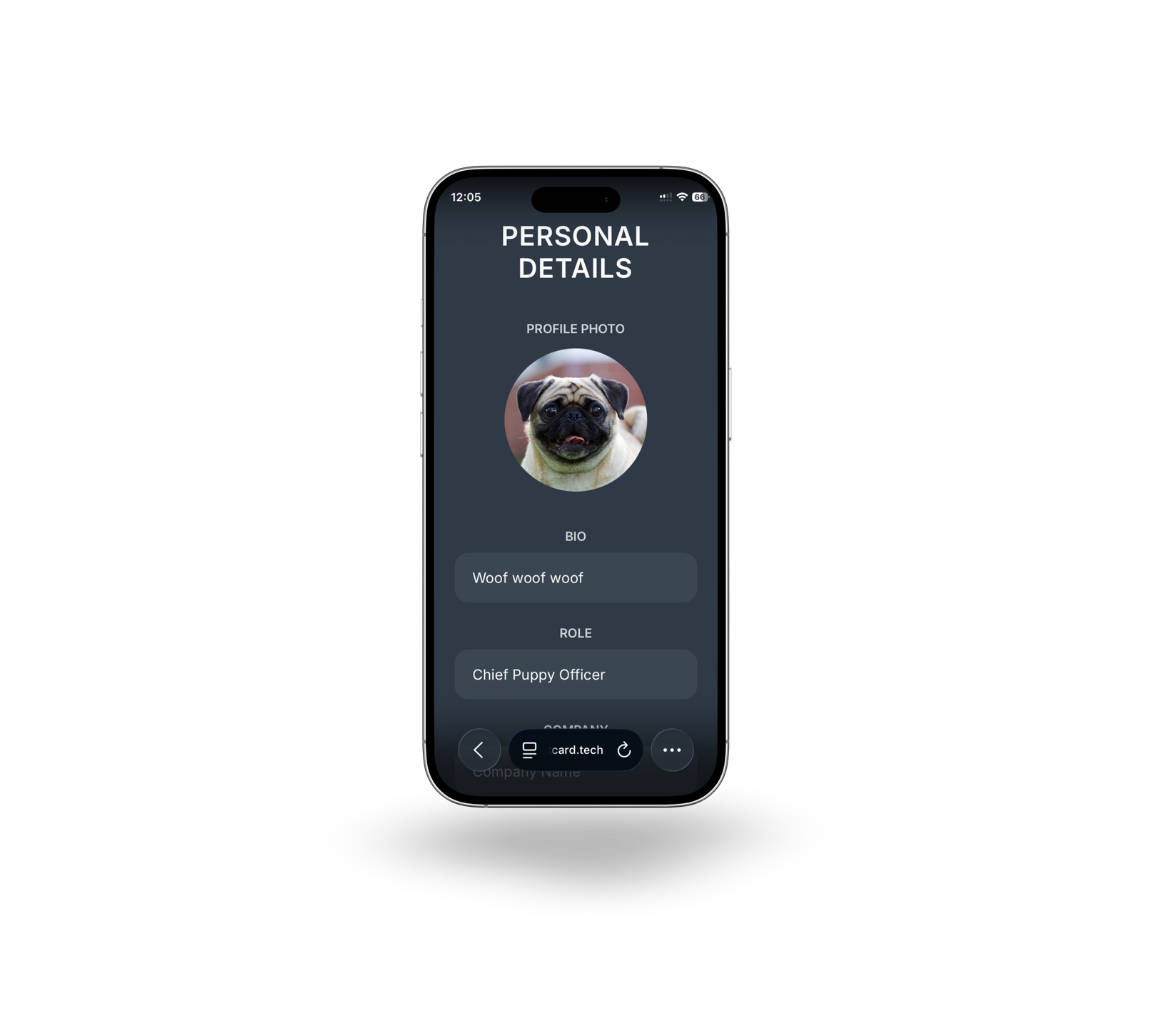
This is where you make SmartCard your own. Add your employment info, bio, and photo to create a profile that represents you to your contacts.
Photo - This is what your contacts will see, so use a photo that conveys the impression you'd like to make. You can also update it at any time to suit different events or occasions.
Bio - A short opportunity to elevator pitch yourself to contacts, or share whatever you'd like!
Job Info - Fill out your position and current role for the event. This can always be updated as needed.
How To Use
Follow the steps below to start using your Smartcard. A video demonstration is available above.
If you are using graphic tutorials, we suggest reading from a second device.
1. Set Up Your Card
Set up your SmartCard profile and add your info. Tutorial available above.
2. Locate & Tap NFC
Find the NFC reader on your connections phone. Take note if they are using an Apple or Android, as the NFCs will be in diffrent places.
Backup QR code on card can also be used for connecting
Do NOT touch card to phone - hold it 1-2 inches away
If pairing has not happened, try slowly waving the card across the NFC area
3. Contact Download
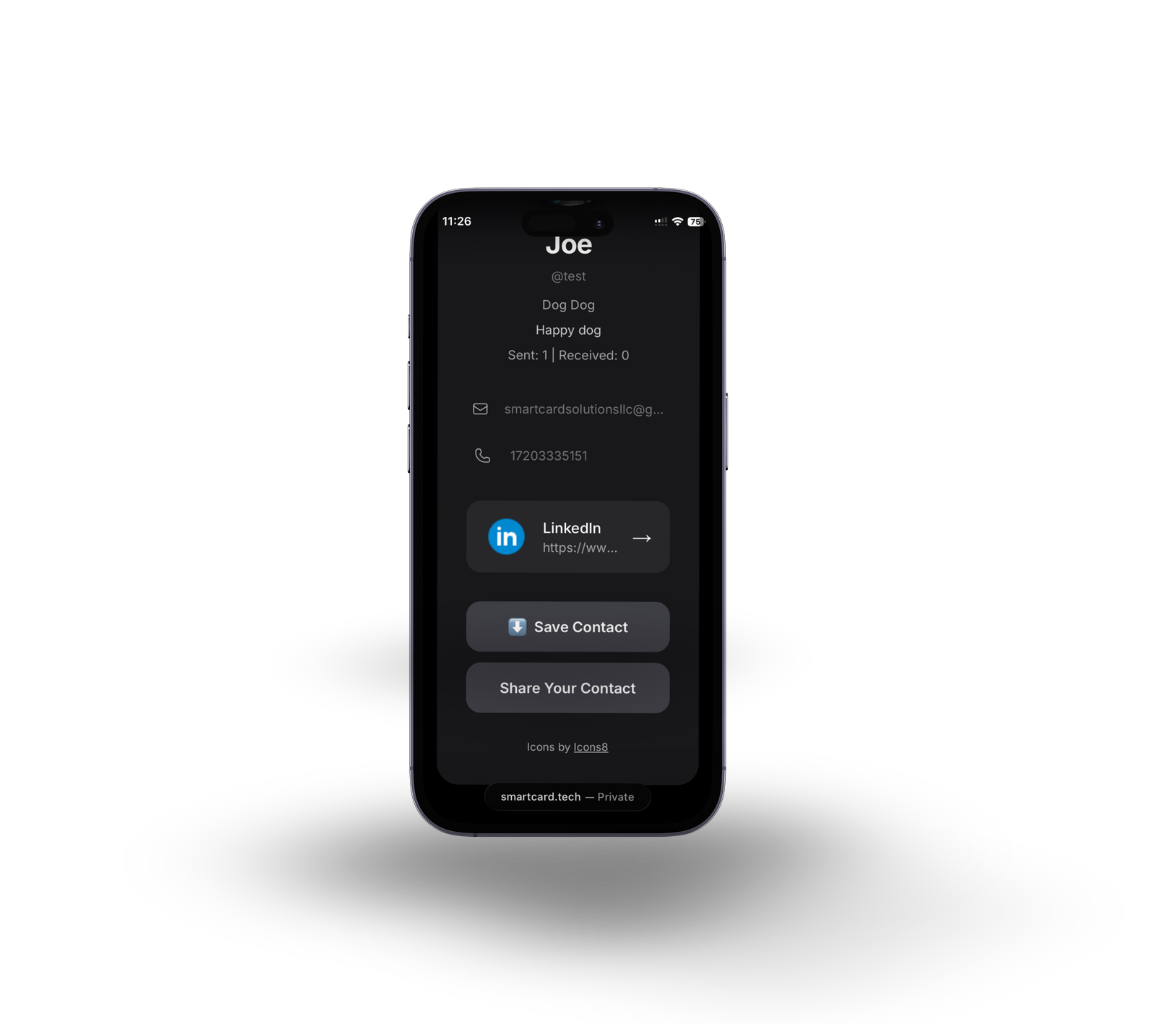
Once the scan is sucsessful, have your connection follow their notification and download your contact.
Ensure Proper Download - After clicking download profile, the connection must then select to create and save new contact
Two Way Contact Sharing
Never miss a contact again and learn to use our softwares two-way contact feature. A video demonstration is available above.
If you are using graphic tutorials, we suggest reading from a second device.
1. Set Up Your card
Set up your SmartCard profile and add your info. Tutorial available above.
2. Locate & Tap NFC
Find the NFC reader on your connections phone. Take note if they are using an Apple or Android, as the NFCs will be in diffrent places.
Backup QR code on card can also be used for connecting
Do NOT touch card to phone - hold it 1-2 inches away
If pairing is unsucsessful, try slowly waving the card across the NFC area
3. Share your Contact
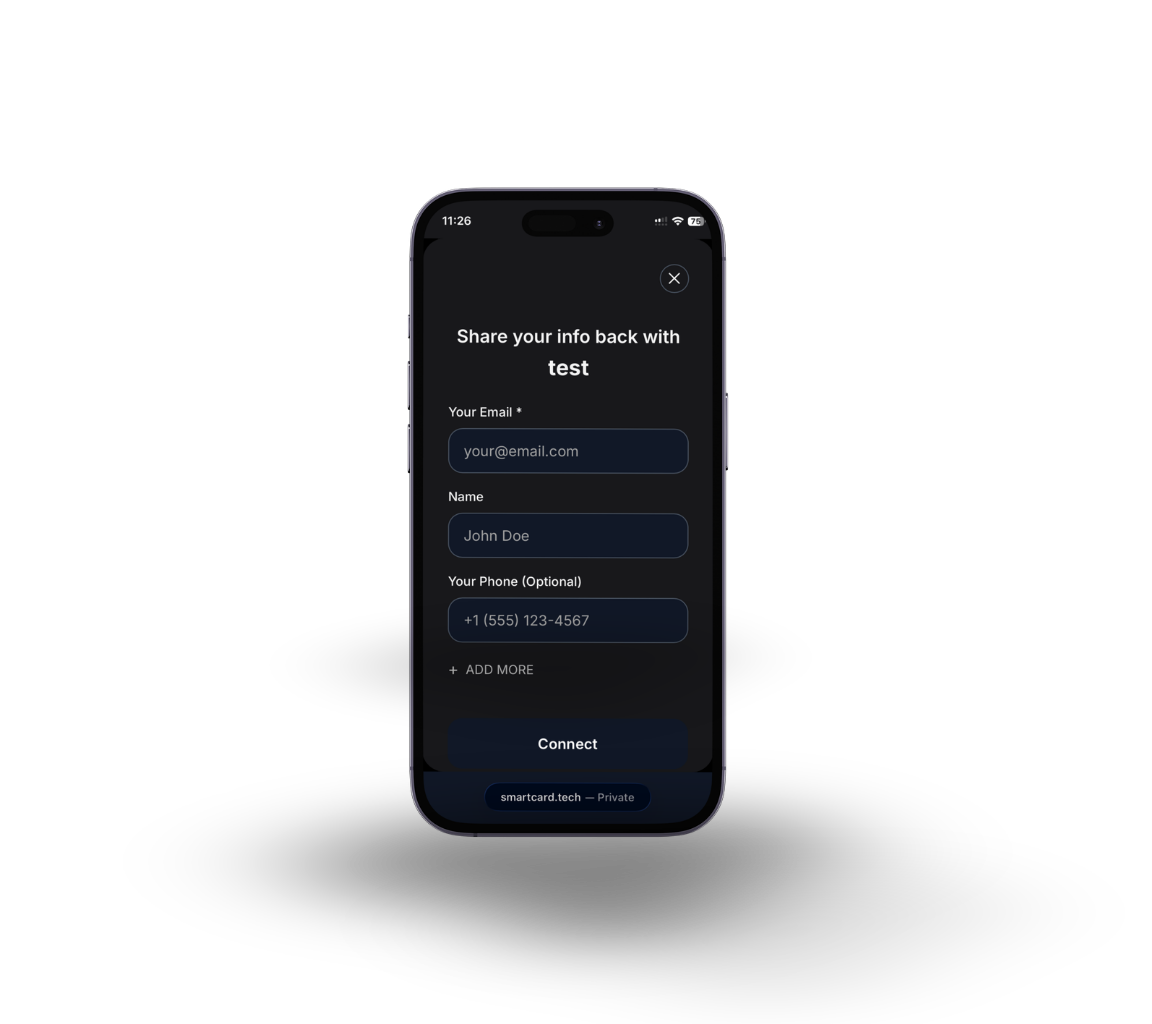
Upon opening the pairing notification, have your connection hit the "share your contact" button
4. Upload & Send
After hitting the button, your connection will be prompted to fill in their info and send it to you.
Conatct Download - Two way contact sharing does not download the contact into your phone. If your connection wants you in their contacts, ensure they download your contact.
Email Notification - After connecting, both parties will recieve each others information in the form of an email.
.png)